
Sale!
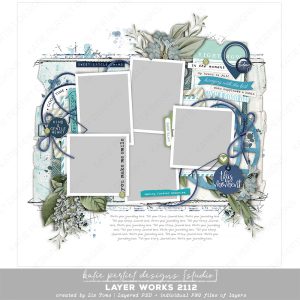

DIGITAL TEMPLATES
$0.99
Sale!
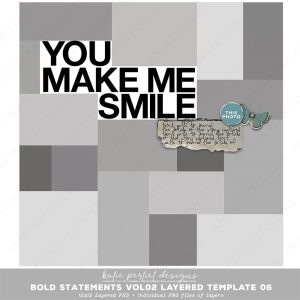

DIGITAL TEMPLATES
Sale!


DIGITAL KITS + BUNDLES
$19.19
Sale!


DIGITAL PAPERS
$4.39
Sale!


DIGITAL PAPERS
$4.39
Sale!

DIGITAL EMBELLISHMENTS
$4.39
Sale!

DIGITAL EMBELLISHMENTS
$4.39
Sale!

DIGITAL EMBELLISHMENTS
$4.39
Collections

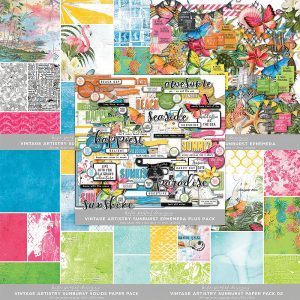





featured items


DIGITAL EMBELLISHMENTS
$5.49
Sale!
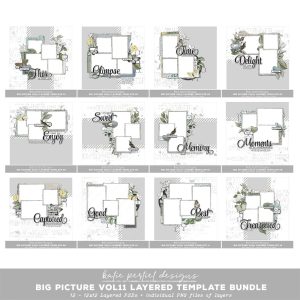

DIGITAL KITS + BUNDLES
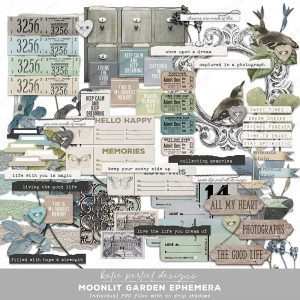

DIGITAL EMBELLISHMENTS
$7.49
Sale!


DIGITAL TEMPLATES


COTTAGE FIELDS
$29.99


DIGITAL EMBELLISHMENTS
$5.49
Sale!


DIGITAL TEMPLATES


DIGITAL STAMPS
$5.49
Sign up for our newsletter
DON’T MISS A THING!
SIGN UP FOR OUR NEWSLETTER TO GET NOTIFICATIONS
OF SALES, NEW RELEASES + MORE!